The UP Family ID (Parivar Pehchan Patra) is a unique identification system launched by the Uttar Pradesh government. If you've forgotten your password or need to change it for security reasons, you'll need to reset it to access your account. Through this page, we will explain in detail how to reset your password in UP Family ID, so please read the article till the end for complete information.
What is UP Family ID?
UP Family ID is a special identification number given by the Uttar Pradesh government to every family in the state. With the help of this ID, you can easily avail all government schemes and services. You need to register once, after which you can access your Family ID profile, link your bank account for benefits, or add family members. Your account password is crucial for securing your Family ID profile and preventing unauthorized access to your family's information and benefits.
UP Family ID Details
| Name of the Scheme | UP Family ID (Parivar Pehchan Patra) |
| Announced by | Uttar Pradesh State Government |
| Launch date | 2022 |
| Objective | To provide government benefits easily to UP families |
| Application method | Online through website or through Jan Seva Kendras |
| Beneficiaries | All families in Uttar Pradesh |
| State | Uttar Pradesh |
| Official Website | https://familyid.up.gov.in/portal/index.html |
UP Family ID Password Reset Process
Follow these steps to reset your password in UP Family ID:
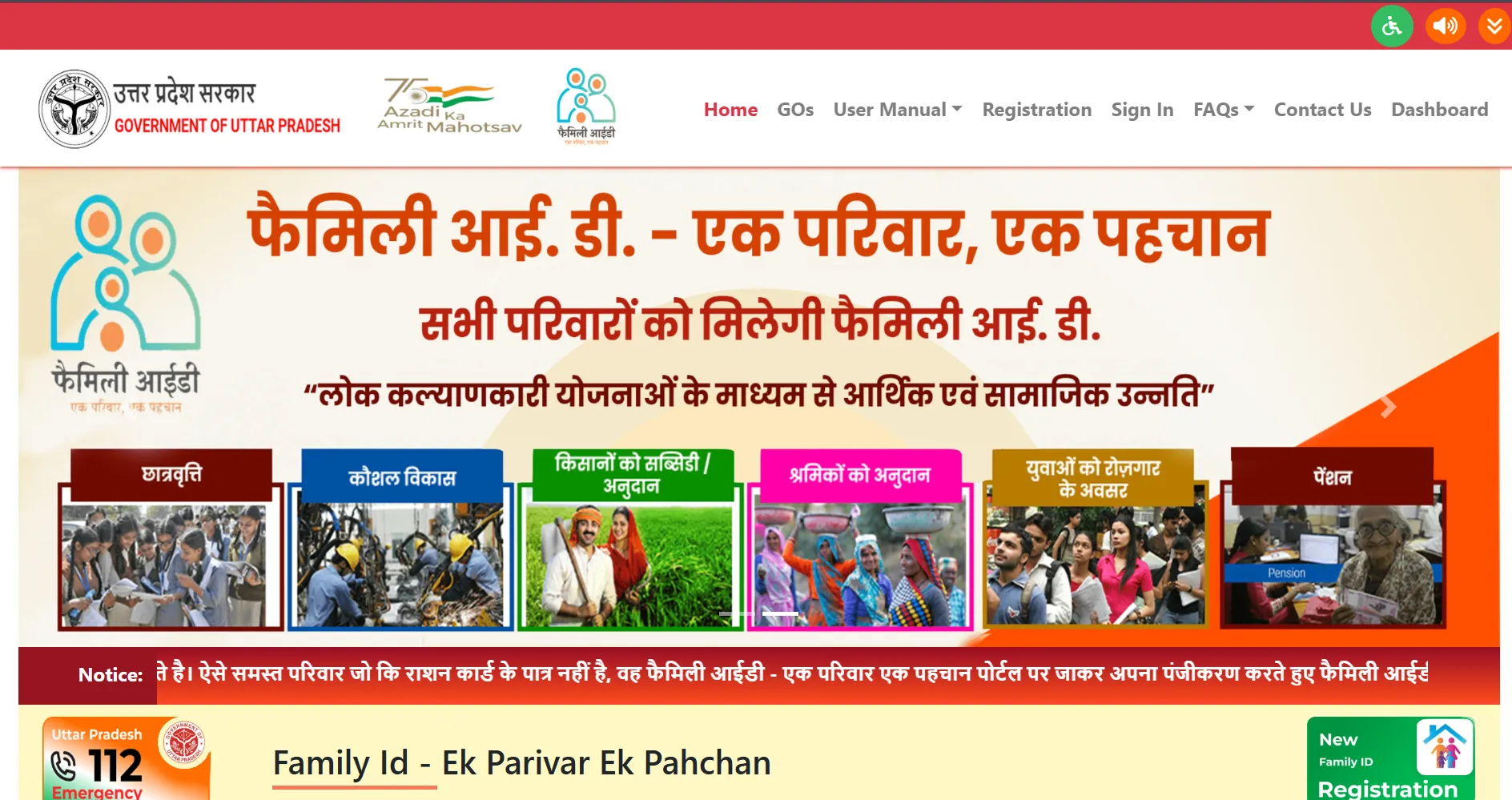
Step 1: Visit the Official Website
First, visit the official UP Family ID website at https://familyid.up.gov.in/portal/index.html. You can open it from your mobile or computer.
Step 2: Go to Login Page
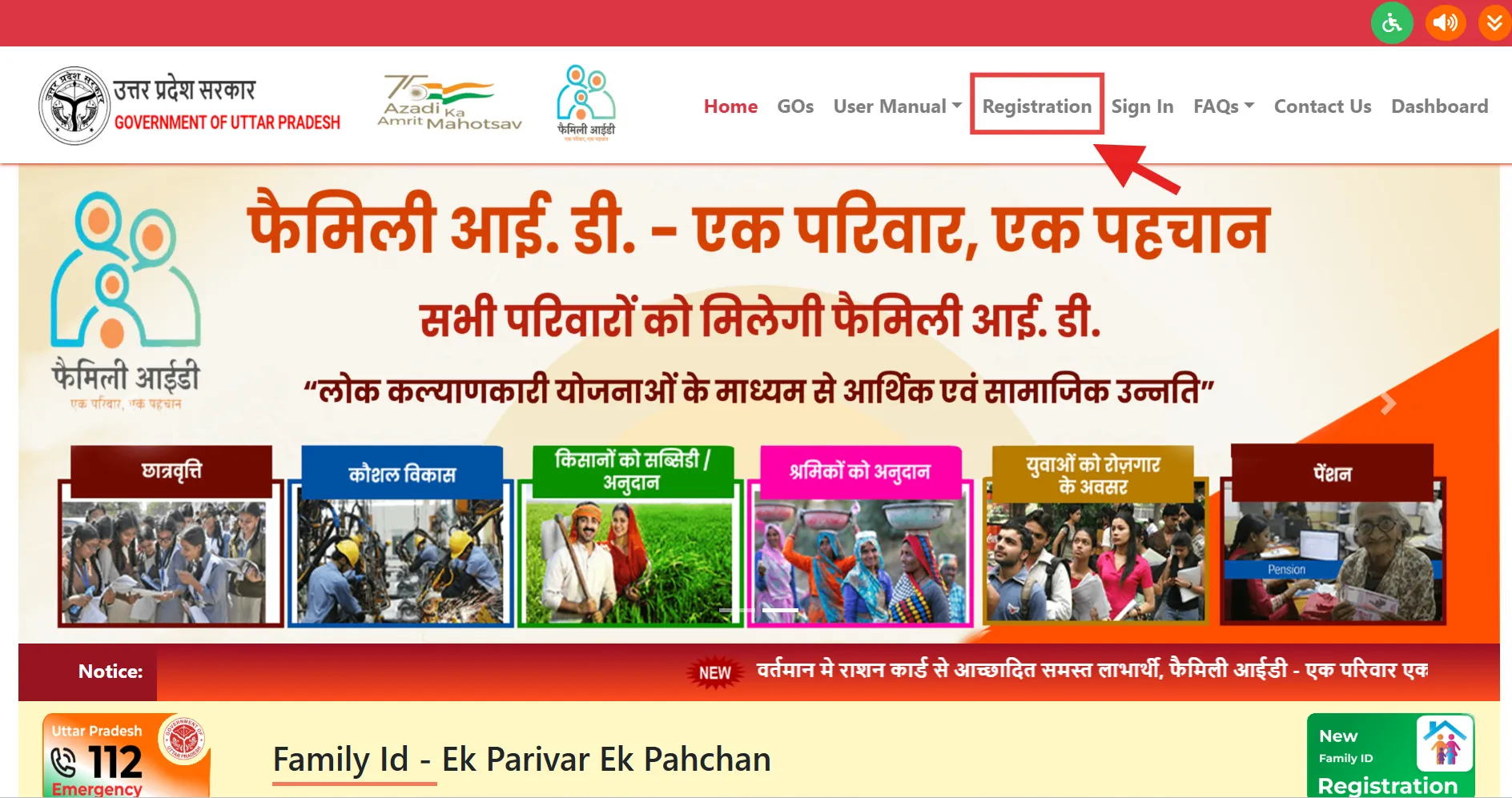
On the homepage, look for the "Login" button and click on it to go to the login page.
Step 3: Click on Forgot Password
On the login page, you'll see a "Forgot Password" or "Reset Password" option, usually located below the login form. Click on this option.
Step 4: Enter Your Registered Mobile Number
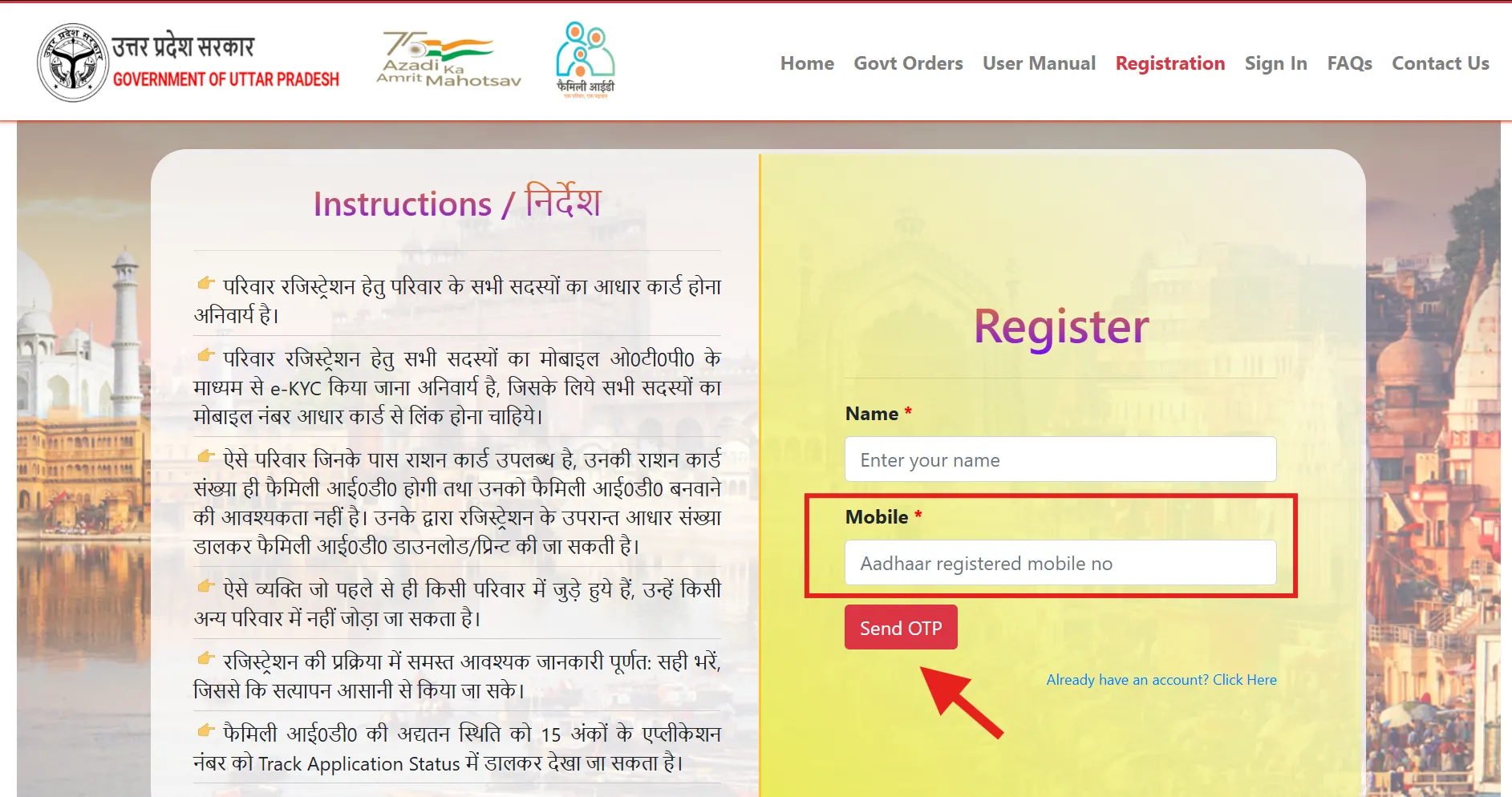
Enter the mobile number that is registered with your UP Family ID account. This is crucial as the password reset OTP will be sent to this number.
Step 5: Enter Security Details
You might be asked to provide additional security information such as:
- Your Family ID number
- Head of family's name
- Security question answer (if you set one during registration)
This step helps verify your identity before processing the password reset.
Step 6: Verify with OTP
An OTP (One-Time Password) will be sent to your registered mobile number. Enter this OTP in the designated field within the time limit (usually 5-10 minutes).
Step 7: Create New Password
After OTP verification, you'll be directed to a page where you can create a new password. Follow these password guidelines:
- Use at least 8 characters
- Include at least one uppercase letter (A-Z)
- Include at least one lowercase letter (a-z)
- Include at least one number (0-9)
- Include at least one special character (like @, #, $, %)
Step 8: Confirm New Password
Re-enter your new password to confirm it and ensure there are no typing errors.
Step 9: Submit and Confirm
Click on the "Submit" or "Reset Password" button to complete the process. You'll receive a confirmation message that your password has been reset successfully.
Step 10: Login with New Password
Now go back to the login page and use your registered mobile number and the new password to login to your UP Family ID account.
UP Family ID Login Process
Once you've reset your password, follow these steps to login:
- Go to the official UP Family ID website https://familyid.up.gov.in/portal/index.html
- Click on the "Login" option on the homepage
- Enter your registered mobile number
- Enter your new password
- Click on the "Login" button
What If You Can't Reset Password Online?
If you're facing issues with the online password reset process, you can try these alternative methods:
Method 1: Reset via OTP
- Go to the official UP Family ID website https://familyid.up.gov.in/portal/index.html
- Click on the "Forgot Password" link below the login form
- Enter your registered mobile number
- Click on "Get OTP" button
- Enter the OTP received on your registered mobile number
- Create a new password following the security requirements
- Confirm your new password
- Click on "Submit" to complete the process
Method 2: Contact Helpline
- Call the UP Family ID helpline
- Explain that you need to reset your password
- Verify your identity by answering security questions
- Follow the instructions provided by the customer service representative
- You might receive a temporary password via SMS that you can change later
Security Tips for Your UP Family ID Password
- Use a Strong Password: Combine uppercase and lowercase letters, numbers, and special characters.
- Avoid Personal Information: Don't use easily guessable information like your name, birthdate, or phone number.
- Don't Reuse Passwords: Use a unique password for your UP Family ID, different from your other accounts.
- Change Regularly: Update your password every 3-6 months for better security.
- Don't Share: Never share your password with anyone, not even family members. If they need access, login for them yourself.
- Download Your ID: After successfully logging in, download your UP Family ID for offline reference and safekeeping.
- Avoid Public Computers: If using a public computer to access your account, always log out completely when finished.
Common Problems and Solutions When Resetting Password
You might face some issues while resetting your password in UP Family ID. Here are common problems and their solutions:
OTP Not Received
If you don't receive the OTP, wait for a few minutes and use the "Resend OTP" option. Also, check if your mobile has network coverage and that the registered number is active. If you're a new user, you may need to complete the registration process first.
Forgotten Registered Mobile Number
If you don't remember which mobile number is registered with your UP Family ID, you'll need to visit a Jan Seva Kendra with your ID proof for assistance.
System Error or Timeout
If you encounter a system error or the page times out during the process, try again after some time. It's best to attempt during non-peak hours when the server load is less.
New Password Not Working
If your new password isn't working after reset, double-check that you're entering it correctly, paying attention to uppercase/lowercase letters and special characters. If it still doesn't work, repeat the reset process.
Important Links for UP Family ID
| Purpose | Link |
| UP Family ID Official Portal | https://familyid.up.gov.in/portal/index.html |
| UP CSC Portal | https://upcsc.in |
| UP Jan Seva Portal | https://jansunwai.up.nic.in |
| UP e-District | https://edistrict.up.gov.in |
| Help & Support | Visit your nearest Jan Seva Kendra |
| Download UP Family ID | UP Family ID Download Guide |
| Bank Account Linking | UP Family ID Bank Account Linking |
| Member Addition | UP Family ID Member Addition |
Resetting your password for UP Family ID is a straightforward process if you follow the steps correctly. Since your account contains important family information and is linked to government benefits, it's crucial to keep your password secure and updated. Whether you choose the online method or visit a service center, make sure you create a strong password that's easy for you to remember but difficult for others to guess.
Frequently Asked Questions (FAQs)
How often should I change my UP Family ID password?
It's recommended to change your password every 3-6 months for security purposes. Also change it immediately if you suspect any unauthorized access to your account.
Can I use the same password I used previously?
While the system might allow it, it's not recommended for security reasons. Always create a new and unique password when resetting.
Will I lose my family data or benefits if I reset my password?
No, resetting your password only changes your login credentials. It doesn't affect any of your registered details, family information, or benefits you're eligible for.
What should I do if I suspect someone else has accessed my UP Family ID account?
If you suspect unauthorized access, immediately reset your password, check your profile for any unauthorized changes, and contact the UP Family ID helpline to report the issue.
What if I need to update my family information after resetting my password?
After successfully resetting your password and logging in, you can add or update family members through the member addition process.
How do I access my UP Family ID after resetting my password?
Once you've successfully reset your password and logged in, you can download your UP Family ID from your account dashboard.